Top Image to Text Converter Tools for 2025
Need to extract text from images quickly and accurately? This listicle reveals the 12 best image to text converter tools, ranging from established OCR software to AI-powered solutions.
#Unlocking Text from Images: Your Guide to the Best Image to Text Converters
Need to extract text from images quickly and accurately? This listicle reveals the 12 best image to text converter tools, ranging from established OCR software to AI-powered solutions. Discover which tool fits your workflow, whether you're a student, researcher, content creator, or simply seeking better information management. We'll cover key features, pricing, and real-world use cases – going beyond marketing hype to provide genuine insights based on extensive use.
This guide helps solve the core problem of inaccessible information locked within images. Imagine seamlessly searching scanned documents, extracting text from infographics, or making handwritten notes searchable. These tools unlock that potential, transforming static images into dynamic, usable text. We'll even cover advanced tools like Reseek, which utilizes OCR to extract text, storing it within a vector database. This enables powerful AI-based semantic search directly within your images, further enhancing information retrieval. This detailed review cuts through the noise, empowering you to choose the perfect image to text converter for your specific needs.
#1. Reseek
Reseek is more than a bookmarking tool; it's an AI-powered personal knowledge management platform. It allows you to capture, organize, and rediscover diverse digital content including text, links, images, videos, and even social media posts. Its strength lies in its semantic search, using AI to understand the context and meaning of your saved items. This means faster, more accurate retrieval of information, eliminating the frustration of sifting through endless bookmarks. Reseek excels at turning digital chaos into a well-structured knowledge base.
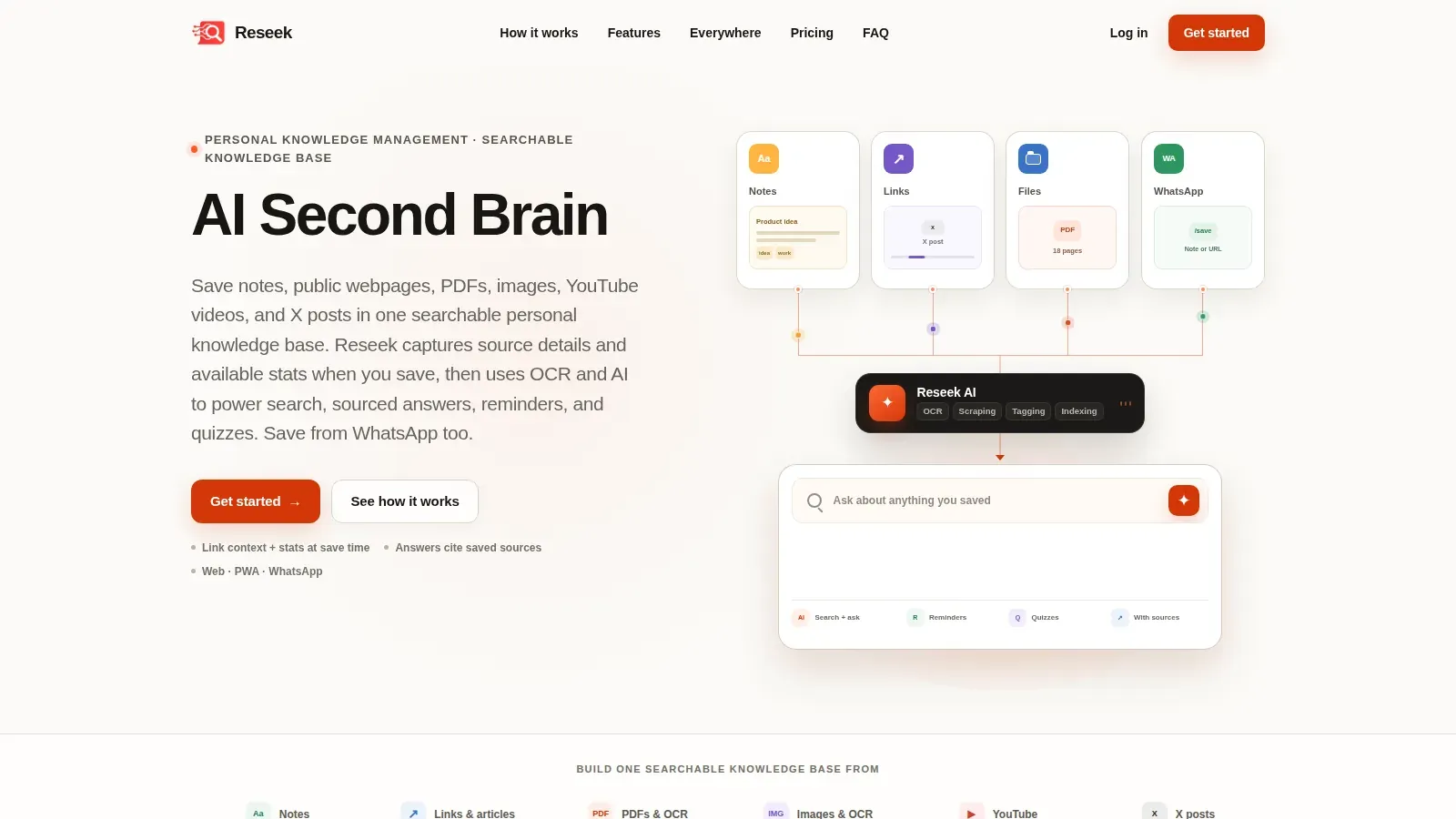
Crucially for our purposes, Reseek leverages Google Cloud Vision's OCR. This technology extracts text from images and saves it to Reseek's vector database. This means you can search for images based on their textual content using AI-powered semantic search, a powerful feature for researchers, content creators, and anyone working with image-heavy content. Imagine needing to find a specific infographic you vaguely remember the contents of – Reseek makes this a reality.
#Reseek: Pros & Cons
Pros:
- AI-powered semantic search: Delivers precise, context-aware results.
- Advanced OCR: Extracts text from images for enhanced searchability.
- Unified workspace: Supports diverse content types, including social media posts.
- Smart categorization and tagging: Streamlines organization.
Cons:
- Pricing: Details are not readily available, requiring signup.
- Learning curve: New users might require time to adapt to the platform's advanced features.
#Reseek: Implementation and Use Cases
Reseek is ideal for knowledge workers, researchers, students, and content creators. Imagine seamlessly integrating your research process by saving articles, website links, and images all in one place. Furthermore, Reseek's social media integration lets you archive and search Twitter/X posts, preserving valuable insights. While the platform boasts advanced features, new users might experience a slight learning curve. However, the payoff in terms of streamlined information management is significant. Visit https://reseek.net to explore Reseek and transform your digital organization.
#2. Adobe Acrobat Pro DC
Adobe Acrobat Pro DC is more than just a PDF reader; it's a comprehensive PDF management powerhouse. Its advanced OCR capabilities transform scanned documents and images into editable and searchable text, all while preserving the original formatting. This makes it an invaluable tool for anyone working with image-heavy documents, from researchers to legal professionals. Acrobat Pro DC excels at turning static image-based PDFs into dynamic, usable documents.
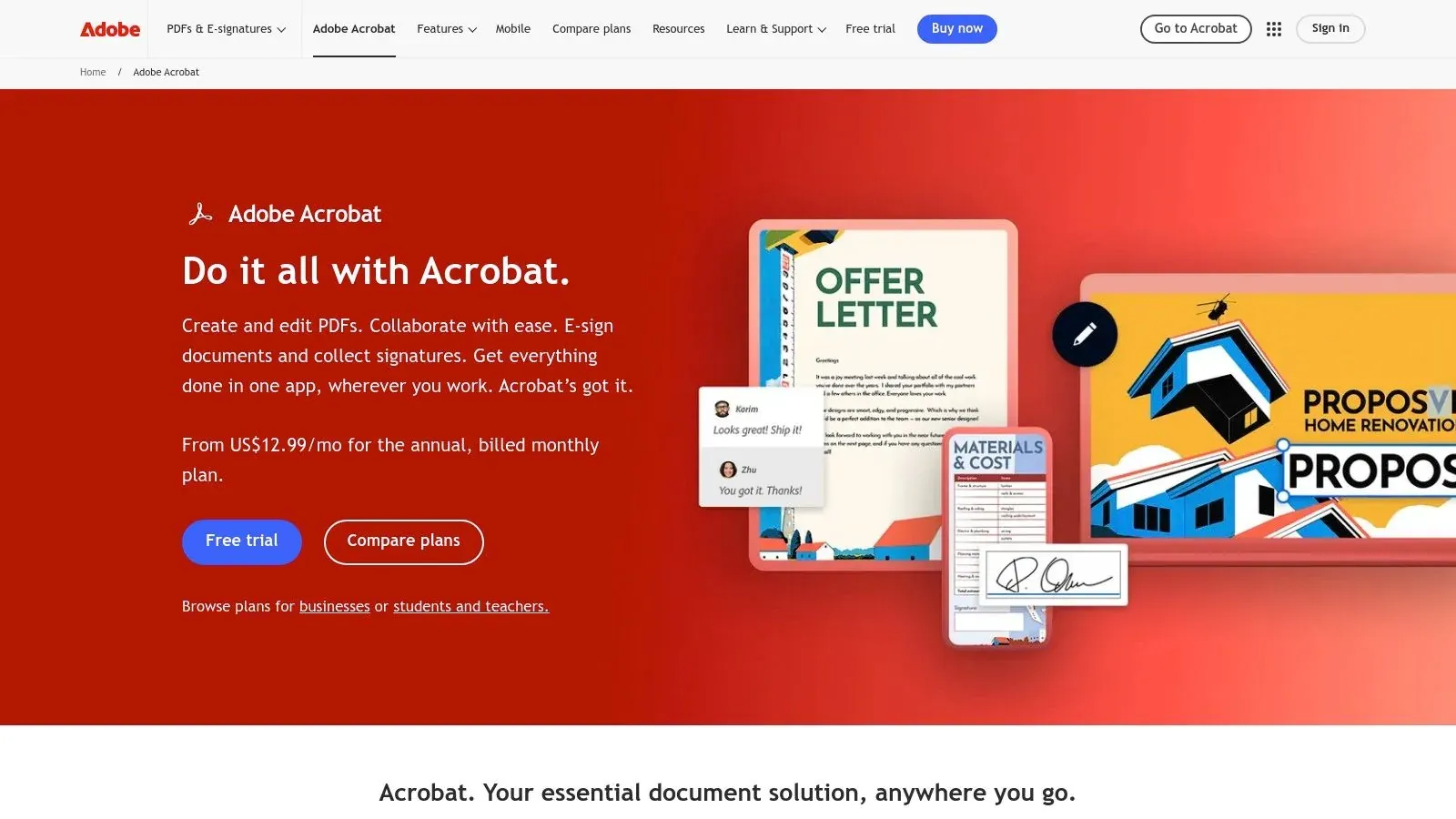
Its high-accuracy OCR engine supports multiple languages, ensuring accurate text extraction regardless of the source document. This extracted text can then be converted into editable formats like Word and Excel, unlocking valuable data trapped within images. Furthermore, seamless integration with Adobe Document Cloud allows for easy access and collaboration across devices. Imagine effortlessly converting a scanned contract into an editable Word document for revisions – Acrobat Pro DC makes this a reality.
#Adobe Acrobat Pro DC: Pros & Cons
Pros:
- Exceptional OCR accuracy: Minimizes errors and ensures reliable text extraction.
- Preserves original document formatting: Maintains the visual integrity of your documents.
- Robust editing and annotation features: Offers a full suite of PDF editing tools.
- Cloud integration: Facilitates easy access, sharing, and collaboration.
Cons:
- Pricing: The premium subscription can be expensive for individual users.
- Resource-intensive: Can be demanding on older computer systems.
#Adobe Acrobat Pro DC: Implementation and Use Cases
Adobe Acrobat Pro DC is ideal for professionals who frequently work with PDFs, including lawyers, researchers, educators, and business users. Imagine needing to extract data from a scanned financial report or edit a scanned legal document. Acrobat Pro DC simplifies these tasks significantly. While the cost may be a barrier for some, the robust features and exceptional OCR accuracy make it a worthwhile investment for those who require professional-grade PDF management. Visit https://www.adobe.com/acrobat.html to explore Acrobat Pro DC and unlock the full potential of your PDF documents.
#3. ABBYY FineReader PDF
ABBYY FineReader PDF is professional-grade OCR software renowned for its high precision and versatility. It efficiently converts scanned images, PDFs, and various document formats into editable versions while meticulously preserving the original layout and formatting. This makes it a powerful image to text converter for professional use. For a deeper dive into OCR solutions, including ABBYY FineReader, check out this helpful comparison: OCR Software Comparison.
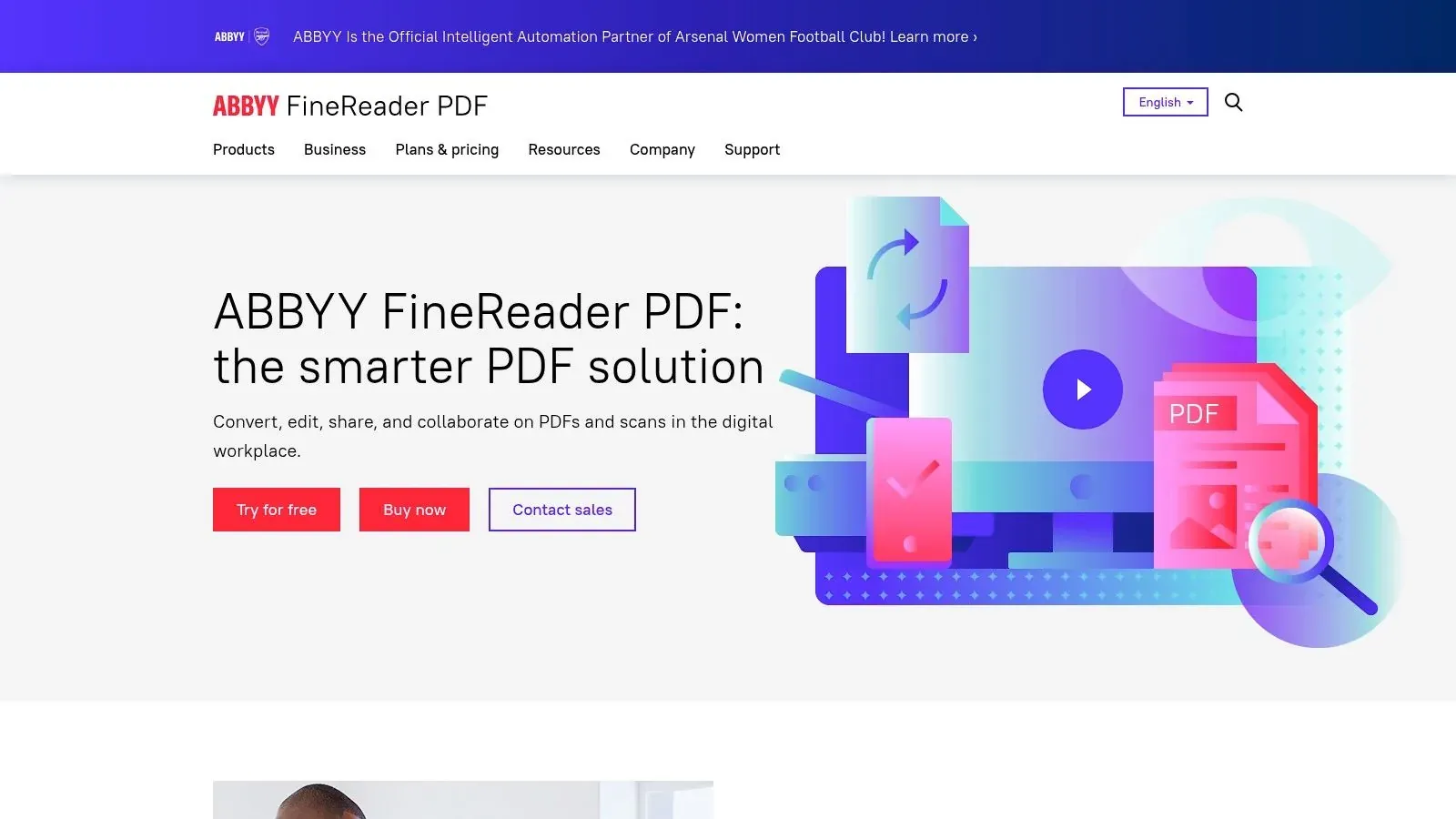
ABBYY's strength lies in its AI-powered OCR engine, supporting over 190 languages and adeptly handling complex layouts, including tables and embedded images. This ensures accurate text extraction even from challenging documents. Like Reseek, which uses OCR to extract text from images and save it to a searchable vector database, FineReader excels at transforming image-based content into usable, editable text.
#ABBYY FineReader PDF: Pros & Cons
Pros:
- Exceptional accuracy: Delivers highly precise text recognition.
- Multilingual support: Handles a wide range of languages.
- Format retention: Maintains original document formatting.
- Comprehensive features: Offers advanced editing and collaboration tools.
Cons:
- Higher cost: More expensive than some other image to text converters.
- Learning curve: Can be challenging for beginners to master.
#ABBYY FineReader PDF: Implementation and Use Cases
FineReader is ideal for businesses, legal professionals, researchers, and anyone requiring high-accuracy OCR. Think digitizing historical archives, converting legal documents, or creating searchable PDF libraries. While the software's advanced features might present a slight learning curve, the payoff in accuracy and functionality is substantial. Visit https://www.abbyy.com/finereader/ to explore ABBYY FineReader PDF and unlock the power of precise image to text conversion.
#4. Tesseract OCR
Tesseract OCR stands out as a powerful, open-source OCR engine maintained by Google. Its strength lies in its highly customizable nature and ability to support over 100 languages, making it ideal for developers and advanced users seeking granular control over text extraction. Unlike user-friendly platforms like Reseek, which seamlessly integrate OCR for image searching within a broader knowledge management system, Tesseract focuses purely on OCR functionality. For those seeking a robust, adaptable engine to integrate into their own workflows, Tesseract is a valuable tool. Learn more about advanced search methods in this article about semantic search. Learn more about… It's worth noting that Reseek also uses OCR to extract text from images and store it in a vector database, allowing for AI-powered semantic search of image content.
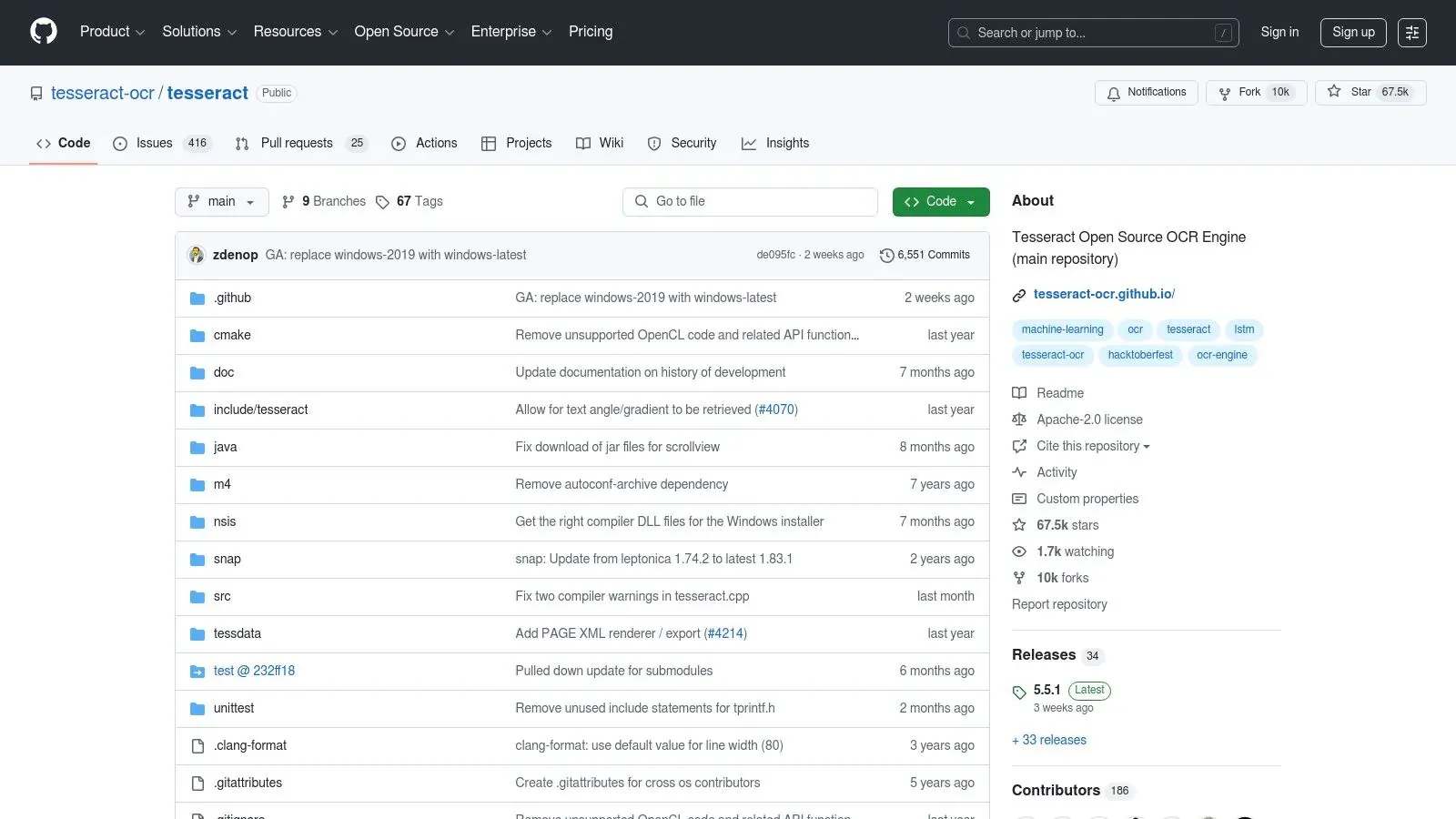
Tesseract's command-line interface gives users extensive control over the OCR process. This allows fine-tuning for specific image types and languages, resulting in highly accurate text recognition. Its active community provides ongoing support and development, ensuring its continued relevance in the evolving landscape of OCR technology.
#Tesseract OCR: Pros & Cons
Pros:
- Free and open-source: Eliminates licensing costs and encourages community development.
- High accuracy: Provides precise text recognition, especially with proper configuration.
- Flexible and adaptable: Suits a wide range of projects due to its customizability.
Cons:
- Lacks a GUI: Requires technical expertise to navigate the command-line interface.
- Steep learning curve: Setup and usage can be challenging for non-technical users.
#Tesseract OCR: Implementation and Use Cases
Tesseract OCR shines in scenarios requiring precise text extraction from diverse image sources. Developers can integrate it into applications, researchers can utilize it for data analysis from scanned documents, and archivists can employ it for digitizing historical texts. While its technical nature may pose a barrier for casual users, its power and flexibility make it a compelling choice for those comfortable working with command-line interfaces and code. Its open-source nature also allows for customization and integration within specific projects, making it an indispensable tool for advanced image to text conversion needs.
#5. Google Drive OCR
Google Drive offers a surprisingly robust, built-in optical character recognition (OCR) function. This allows users to transform images and PDFs into editable text directly within the platform, seamlessly integrated with Google Docs. This feature proves particularly handy for digitizing notes, receipts, or documents quickly without needing specialized software. It's a practical image to text converter readily available for anyone with a Google account.
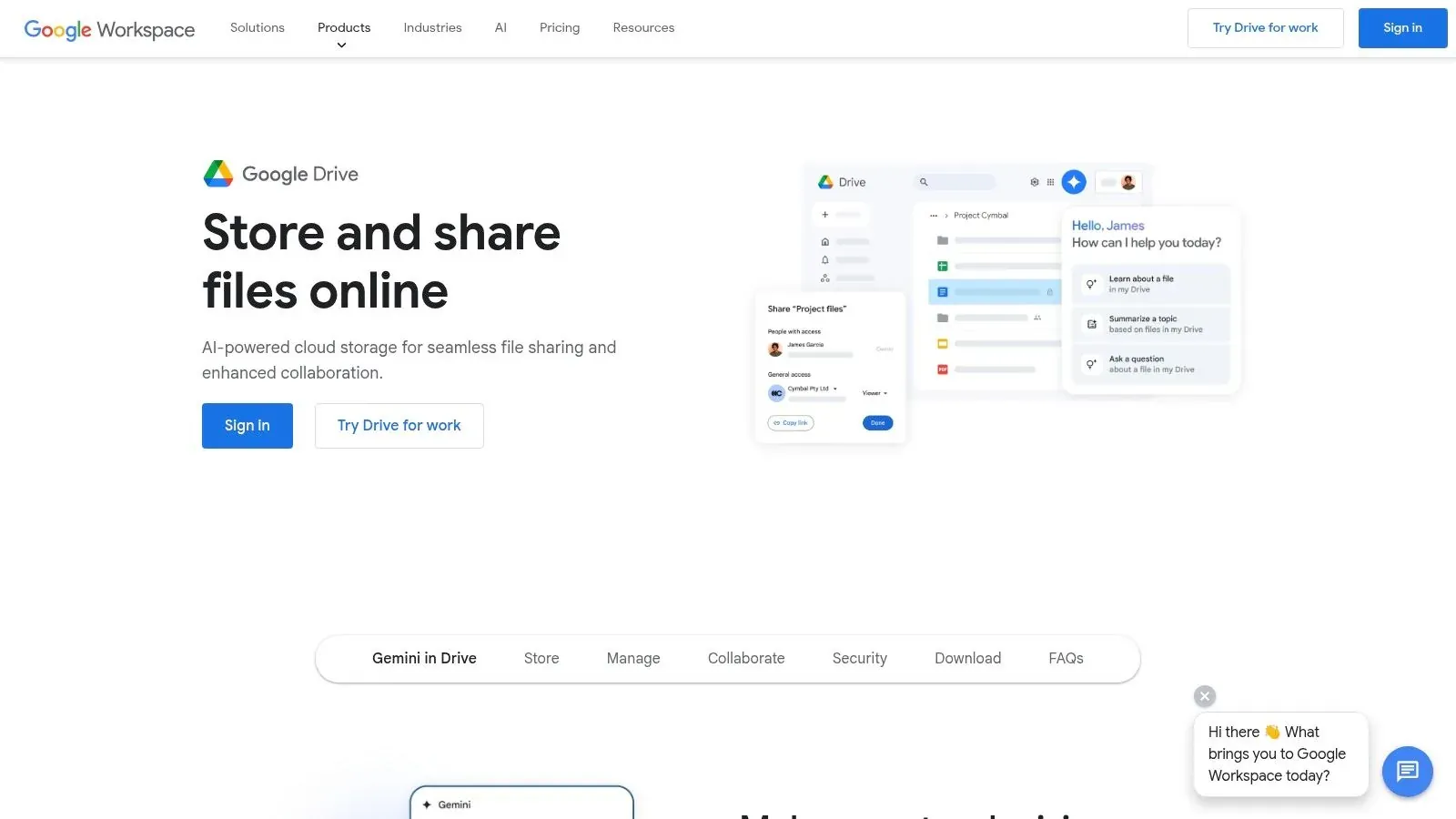
Its tight integration with the Google ecosystem is a significant advantage. Uploaded image files can be opened with Google Docs, automatically initiating the OCR process. The extracted text becomes editable, allowing for easy copying, pasting, and formatting within Docs. This streamlines workflows, especially for those already heavily reliant on Google's services. It’s a powerful image to text converter subtly hidden within a familiar tool.
#Google Drive OCR: Pros & Cons
Pros:
- Free and readily accessible: Requires only a Google account.
- Seamless Google Docs integration: Simplifies editing and sharing.
- Supports multiple languages: Expands its utility for diverse content.
- User-friendly interface: Easy to navigate and use.
Cons:
- Limited feature set: Lacks advanced OCR options for complex layouts.
- Accuracy can waver: Struggles with low-quality images or unusual fonts.
#Google Drive OCR: Implementation and Use Cases
Google Drive OCR is perfect for quick, straightforward image to text conversion tasks. Students can digitize handwritten notes, professionals can extract text from presentation slides, and anyone can convert scanned documents into editable text. While it may not handle highly complex layouts or blurry images as effectively as dedicated OCR software, its accessibility and integration within the Google ecosystem make it an invaluable tool for everyday use. Visit https://www.google.com/drive/ to explore this functionality and streamline your document workflows.
#6. Microsoft OneNote
Microsoft OneNote isn't just a digital note-taking app; it's a powerful information hub with built-in OCR capabilities. This makes it a handy image to text converter for everyday use. OneNote allows you to seamlessly integrate text from images and even handwritten notes directly into your digital notebooks. This feature streamlines workflows, eliminating the need for manual transcription or separate OCR software. It excels at quickly grabbing text from screenshots, scanned documents, or photos.
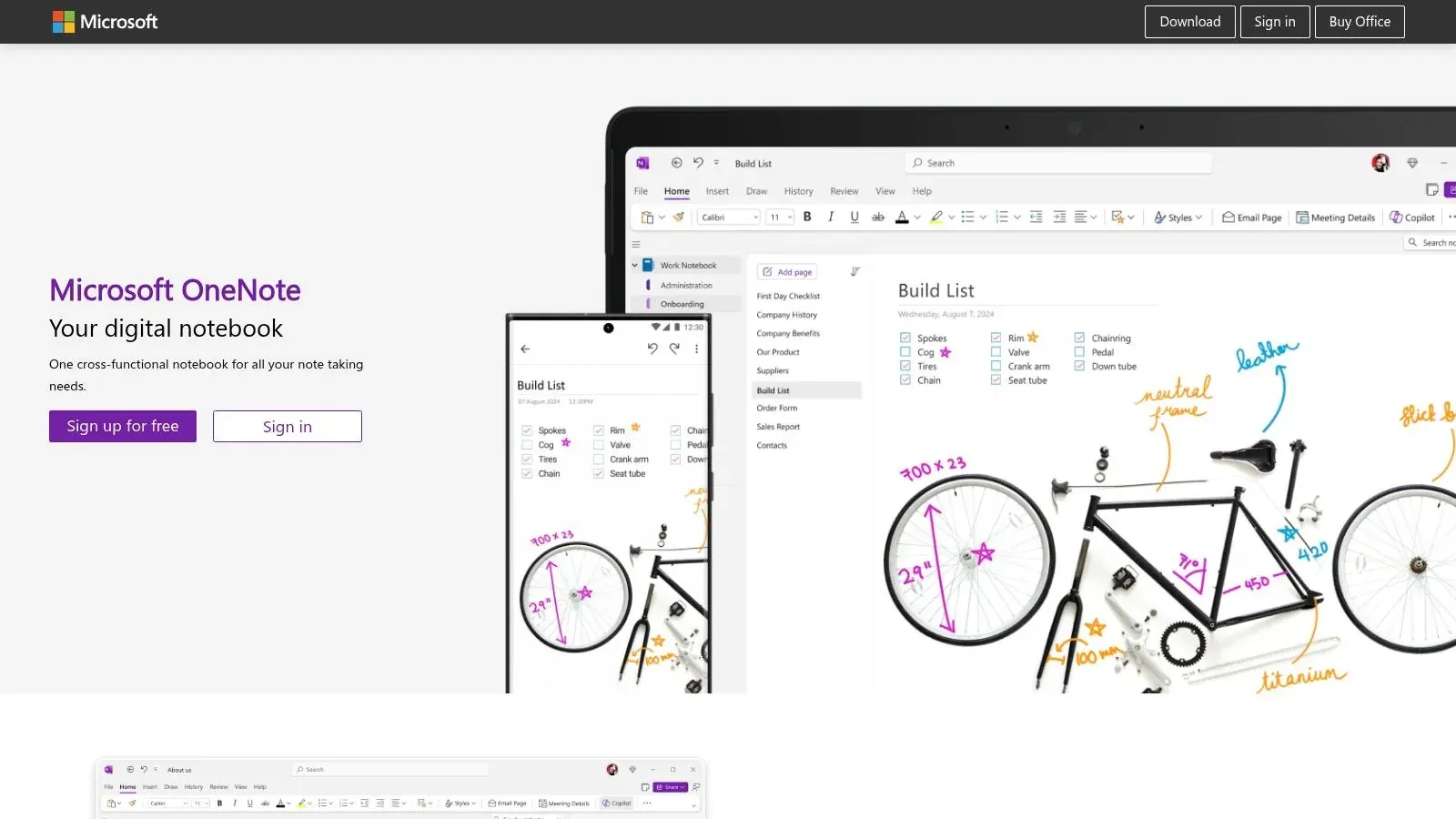
OneNote's OCR shines in its simplicity and integration with the Microsoft ecosystem. Its user-friendly interface makes extracting text from images a breeze. Simply insert the image into your notebook, right-click, and select "Copy Text from Picture." The extracted text is then ready to be pasted and used within OneNote or any other application. This tight integration with the Microsoft Office suite is a major advantage for users already working within that environment.
#Microsoft OneNote: Pros & Cons
Pros:
- Free with a Microsoft account: No additional cost for existing Microsoft users.
- User-friendly interface: Easy to navigate and use, even for OCR beginners.
- Effective for basic OCR tasks: Quickly extracts text from common image formats.
- Cross-device syncing: Access and edit your notes and extracted text across devices.
Cons:
- Limited advanced OCR features: Lacks the sophisticated capabilities of dedicated OCR software.
- Accuracy may vary: Struggles with complex documents or low-quality images.
#Microsoft OneNote: Implementation and Use Cases
OneNote is perfect for students digitizing handwritten notes, professionals capturing information from presentations, or anyone needing to quickly extract text from images. Its seamless integration with other Microsoft applications makes it an efficient tool for incorporating extracted text into documents or presentations. While it might not be suitable for highly specialized OCR tasks requiring pinpoint accuracy, its ease of use and free availability make it a valuable image to text converter for everyday applications. Visit https://www.onenote.com/ to explore OneNote and its capabilities.
#7. Google Keep
Google Keep is a simple yet effective note-taking service that offers built-in optical character recognition (OCR). This functionality allows you to extract text from images and save it as searchable notes, seamlessly syncing across your devices. Its intuitive interface makes it easy to quickly capture information from photos of documents, whiteboards, or even handwritten notes. This makes it a handy tool for digitizing and organizing information on the go.
Unlike more complex tools, Google Keep focuses on simplicity and ease of use. It's completely free and integrates seamlessly with other Google services, like Google Drive. This tight integration allows you to easily incorporate extracted text into documents or presentations. You can even search for specific keywords from your image-based notes across your entire Google Drive ecosystem. Learn more about Google Keep and its integration into productivity workflows. It's worth noting that platforms like Reseek offer a more advanced approach, leveraging OCR to extract text from images and save it to a vector database, enabling AI-powered semantic search across your visual content.
#Google Keep: Pros & Cons
Pros:
- Completely free: No subscription fees or hidden costs.
- Easy to use: Intuitive interface for quick note-taking and image-to-text conversion.
- Cross-device syncing: Access your notes from anywhere.
Cons:
- Limited interface: Lacks advanced features found in dedicated OCR software.
- No batch processing: Not ideal for converting multiple images at once.
#Google Keep: Implementation and Use Cases
Google Keep is perfect for students capturing lecture notes, professionals digitizing receipts, or anyone needing a quick and easy way to extract text from images. While it lacks the advanced search capabilities of a tool like Reseek, its simplicity and free access make it a valuable asset for basic image-to-text conversion needs. Its strength lies in its ease of use and seamless integration into the Google ecosystem. For quick, on-the-go text extraction, Google Keep is a reliable choice. Visit https://keep.google.com/ to get started.
#8. CamScanner
CamScanner transforms your mobile device into a portable document scanner and image to text converter. This app excels at capturing high-quality scans and employing OCR to extract text, making it ideal for digitizing receipts, notes, and documents on the go. Its seamless integration with cloud services ensures your converted text is readily accessible across devices. Forget bulky scanners; CamScanner offers a streamlined, mobile-first approach to document management.
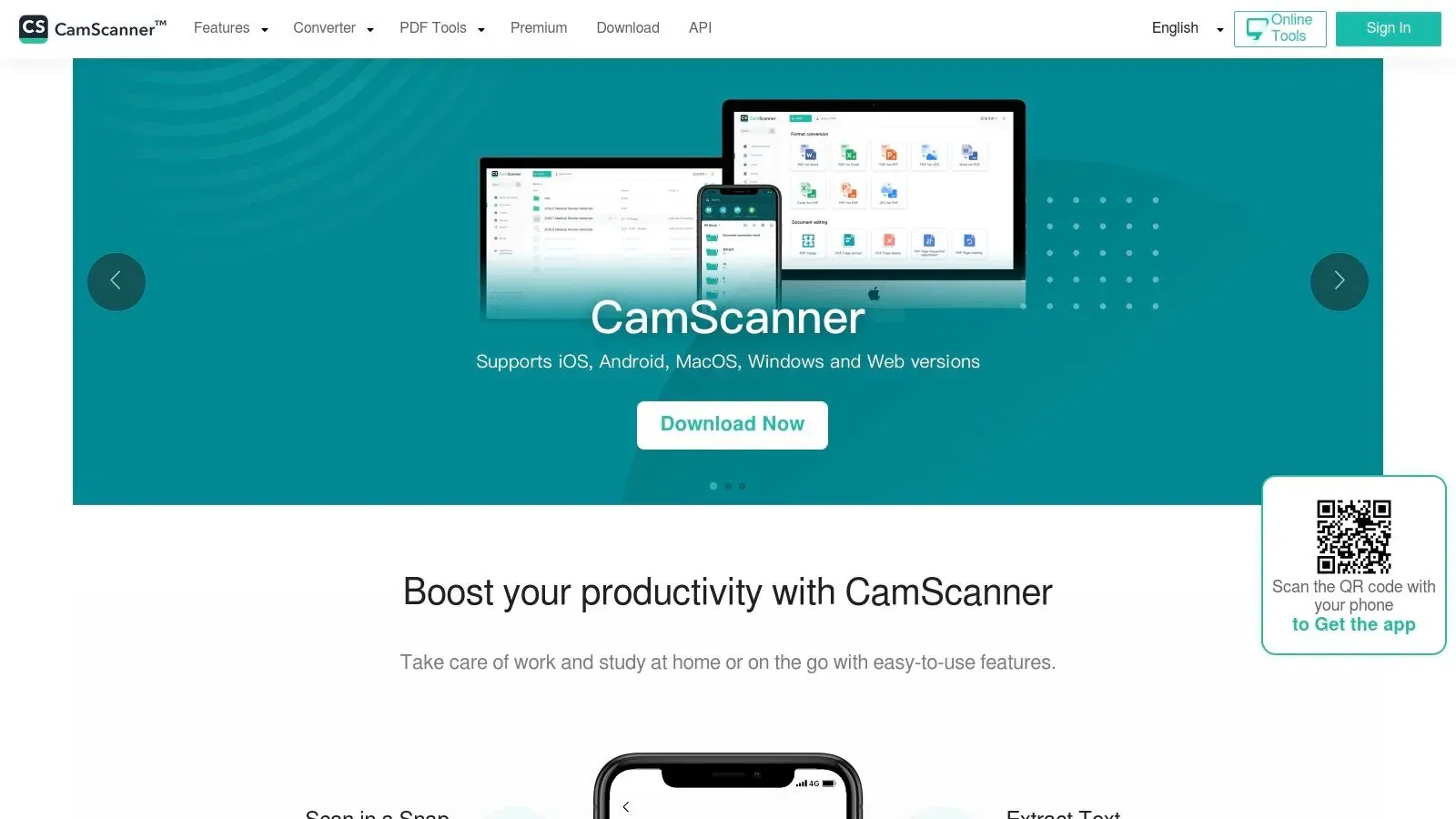
CamScanner's strength lies in its accurate OCR and user-friendly interface. The app supports multiple file formats, facilitating easy sharing and integration with other workflows. Furthermore, annotation and editing tools allow you to refine your digitized documents directly within the app. This makes CamScanner a powerful tool for students, professionals, and anyone needing to digitize and manage documents efficiently. Think of it as your pocket-sized document assistant.
#CamScanner: Pros & Cons
Pros:
- User-friendly interface: Simple and intuitive to navigate.
- Ideal for mobile scanning: Optimized for on-the-go document capture.
- High accuracy: Delivers reliable text extraction from images.
Cons:
- Free version includes watermarks: Can be a drawback for professional use.
- Premium version is relatively expensive: May be a barrier for some users.
#CamScanner: Implementation and Use Cases
CamScanner is a must-have for students digitizing notes, researchers archiving documents, and business professionals managing receipts. Imagine effortlessly converting handwritten notes into searchable text or quickly sharing important documents with colleagues. While the free version's watermarks might be a limitation, the premium version's features justify the investment for frequent users. Visit https://www.camscanner.com/ to explore CamScanner and experience mobile document management.
#9. OnlineOCR.net
OnlineOCR.net is a free web-based OCR (Optical Character Recognition) service. It efficiently converts images and scanned PDFs into editable text. The platform supports various file formats and multiple languages, making it a versatile tool for quick image to text conversions. Its simplicity and accessibility make it a handy resource for anyone needing to extract text from images without complex software.
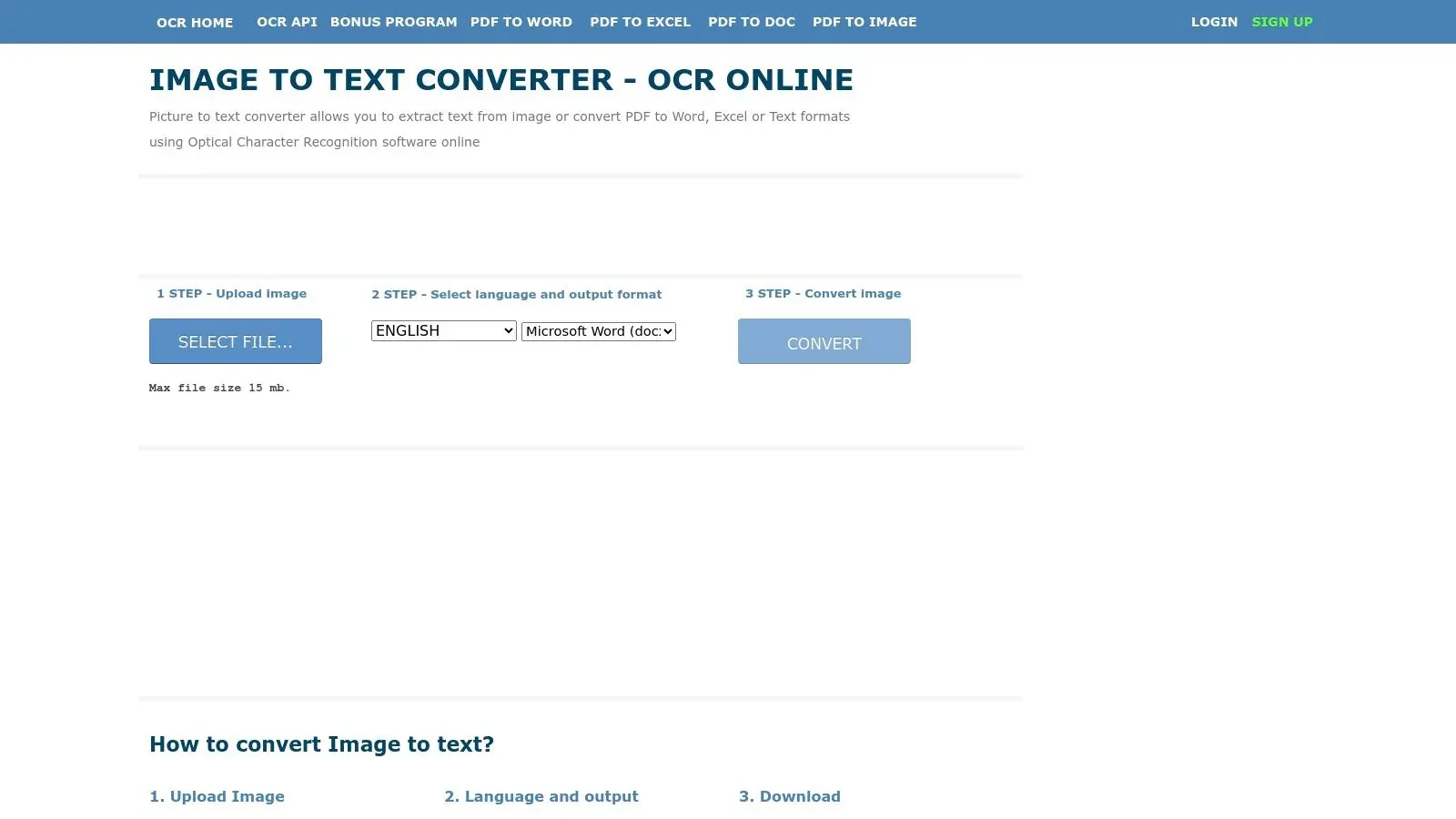
One of OnlineOCR.net's strengths is its no-frills approach to image to text conversion. Upload your image (JPEG, PNG, BMP, TIFF, or PDF), select the output format (Word, Excel, or plain text), and let the service do the work. The multi-language support for over 45 languages broadens its utility for international users and diverse content. While basic usage requires no registration, creating an account unlocks features like batch processing. This is particularly useful for handling large volumes of image-based documents.
#OnlineOCR.net: Pros & Cons
Pros:
- Simple and easy-to-use interface: Streamlines the conversion process.
- Supports various languages and file formats: Caters to diverse needs.
- No installation or sign-up required: Offers immediate accessibility.
Cons:
- Free version limits usage: Restricts to 15 images per hour.
- Batch processing requires a premium account: Limits free tier functionality.
#OnlineOCR.net: Implementation and Use Cases
OnlineOCR.net is a practical solution for various image to text converter needs. Students can digitize handwritten notes or textbook excerpts. Researchers can extract text from scanned documents or historical archives. Content creators can quickly convert image-based information into editable text. While the free version's hourly limit might be a constraint for high-volume users, the simplicity and accessibility of OnlineOCR.net make it a valuable tool for anyone seeking a quick and easy image to text converter. Visit https://www.onlineocr.net/ to experience its functionality firsthand.
#10. PrepostSEO OCR
PrepostSEO offers a free online OCR (Optical Character Recognition) tool that quickly converts images into editable text. It supports various image formats (PNG, JPG, BMP, GIF, JPEG, and TIFF) and over 30 languages. A standout feature is its ability to recognize complex mathematical equations within images, a boon for students and academics. This makes it a versatile option for quickly extracting text from images without needing specialized software.
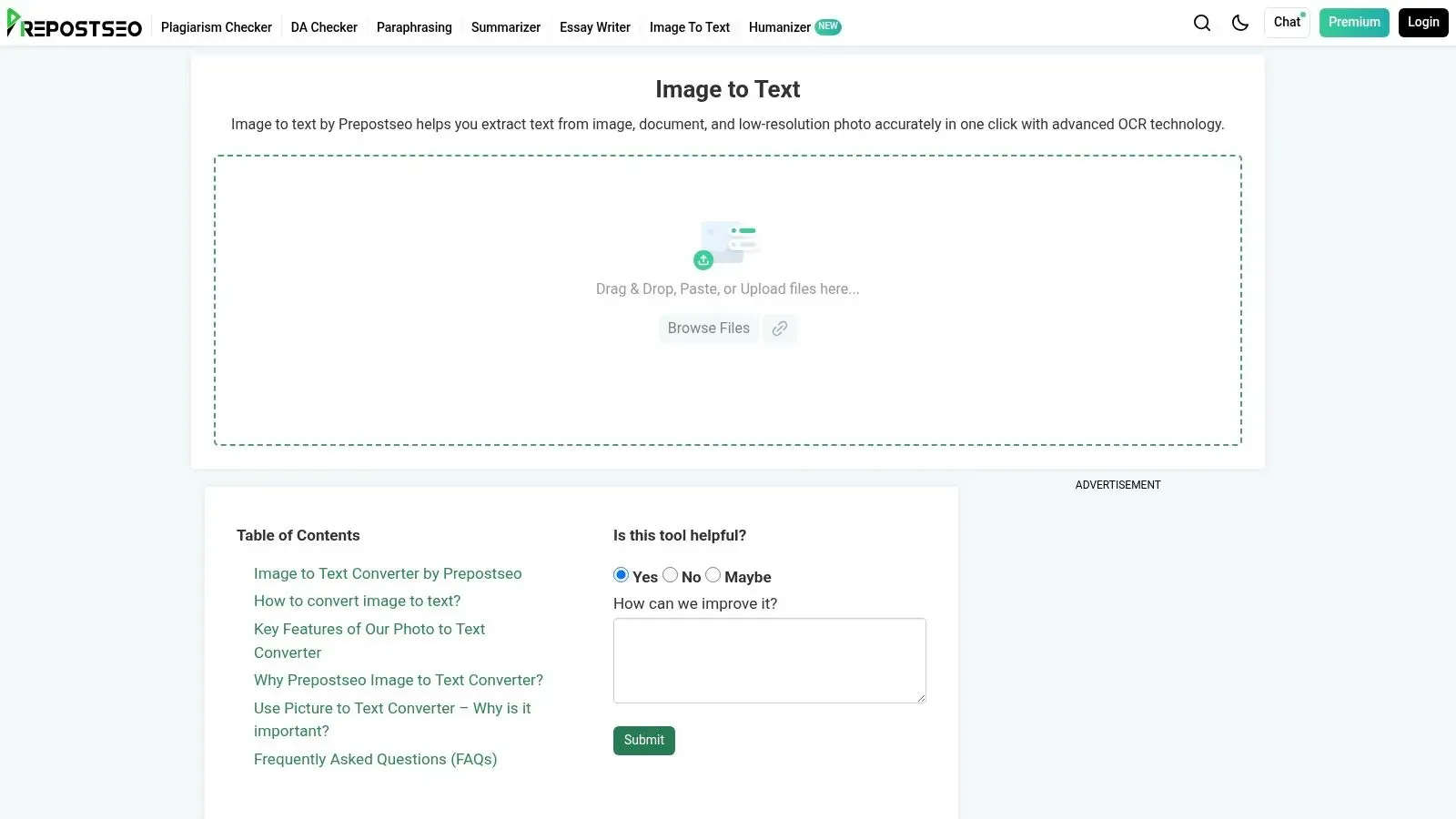
PrepostSEO OCR excels at handling even low-resolution images, often providing surprisingly accurate results. Its simple, user-friendly interface makes it easy to upload images and extract text within seconds. Besides OCR, PrepostSEO offers a suite of other helpful tools like a grammar checker and plagiarism checker, adding value for content creators and students. This suite of tools can streamline workflows, particularly for those frequently working with image-based information.
#PrepostSEO OCR: Pros & Cons
Pros:
- Free to use: A significant advantage for occasional users.
- Handles low-resolution images: Maintains accuracy even with less-than-ideal image quality.
- User-friendly interface: Simple and intuitive for quick text extraction.
- Supports multiple languages and formats: Caters to a diverse range of needs.
Cons:
- Limited advanced features: Lacks the sophistication of premium OCR software.
- Accuracy may vary with complex layouts: Struggles with multi-column documents or intricate image layouts.
#PrepostSEO OCR: Implementation and Use Cases
PrepostSEO OCR is perfect for quickly grabbing text from images for various purposes. Consider using it for digitizing notes, extracting information from scanned documents, or converting screenshots into editable text. While it's a valuable free tool, keep in mind its limitations with complex layouts. For users needing more advanced OCR capabilities or consistent high accuracy, exploring premium alternatives might be necessary. Visit https://www.prepostseo.com/image-to-text to experience its ease and utility.
#11. LightPDF OCR
LightPDF OCR is a straightforward online image to text converter. It offers a simple and effective way to extract text from images with a user-friendly interface. Its web-based nature makes it accessible across different platforms without requiring any software downloads. This convenience is ideal for quick conversions or users who prefer not to install additional applications. LightPDF OCR prioritizes ease of use and accessibility.
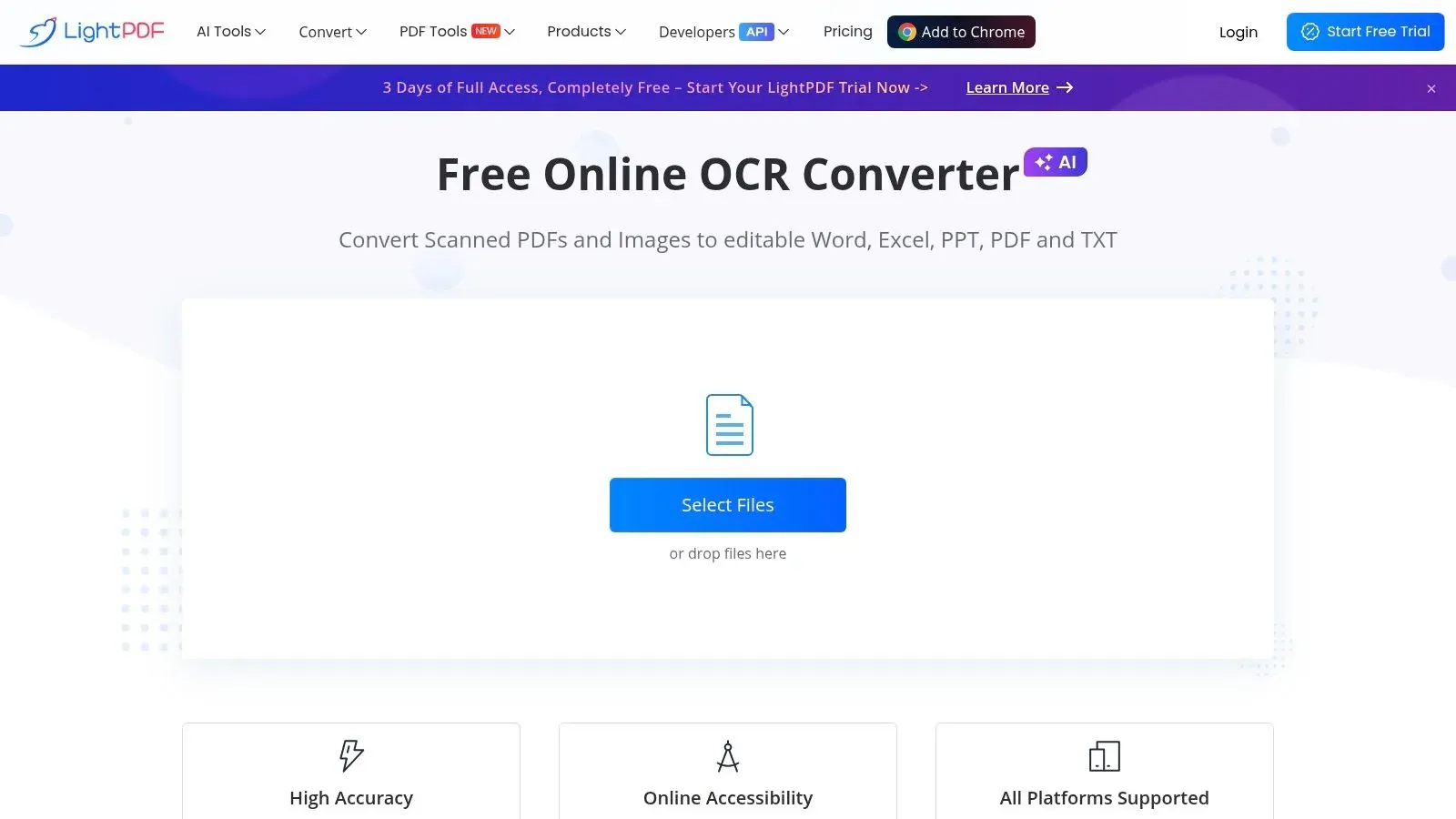
Its core strength lies in its simplicity. Upload your image (JPEG, PNG, PDF, TIFF) and LightPDF OCR quickly extracts the text. While it doesn't boast advanced features like some other tools on this list, its accuracy and speed are commendable for basic image to text conversion needs. This makes it a practical choice for quickly digitizing printed documents or extracting text from images for editing.
#LightPDF OCR: Pros & Cons
Pros:
- No software installation: Access directly through your web browser.
- Supports various file formats: Handles common image and document types.
- Free to use: Provides a cost-effective solution for basic OCR needs.
Cons:
- Limited advanced features: Lacks functionalities like batch processing or table recognition.
- Requires internet connection: Offline usage is not possible.
#LightPDF OCR: Implementation and Use Cases
LightPDF OCR is perfect for individuals needing a fast and free way to perform image to text conversion. Students can digitize notes, researchers can extract text from scanned documents, and anyone can quickly convert image-based text into editable format. While it may not be suitable for complex projects requiring advanced OCR capabilities, its simplicity and accessibility make it a valuable tool for everyday use. Visit https://lightpdf.com/ocr to experience hassle-free image to text conversion.
#12. SmallSEOTools OCR
SmallSEOTools OCR is a straightforward and free online image to text converter. It's a handy tool for quickly extracting text from images without needing specialized software or creating an account. Its simplicity makes it a practical choice for occasional use or when dealing with uncomplicated image-based text extraction. This no-frills approach can be a major advantage for users who prioritize speed and ease of use.
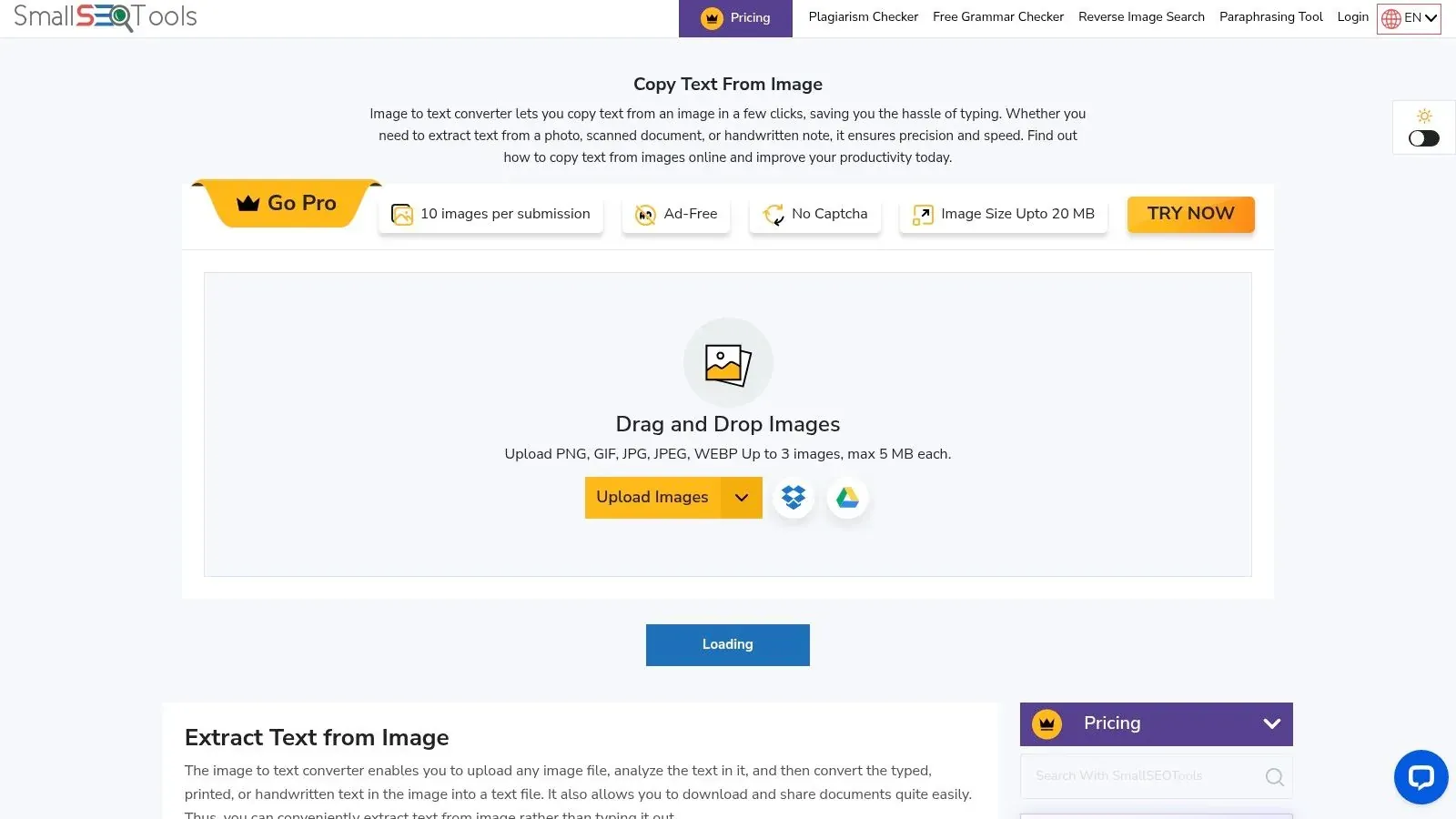
Unlike more complex tools, SmallSEOTools OCR focuses on delivering core functionality without a steep learning curve. It supports various image formats and multiple languages, making it versatile for a range of text extraction tasks. While it may not offer advanced features like searchable image text databases (like Reseek, which uses OCR and AI-powered semantic search for image retrieval), it excels in providing quick and accessible text conversion.
#SmallSEOTools OCR: Pros & Cons
Pros:
- Free to use: No cost barrier for basic text extraction.
- Easy to navigate: Simple interface for quick processing.
- No installation required: Access directly through your web browser.
Cons:
- Limited advanced features: Lacks functionalities like searchable image archives.
- Accuracy may vary: Performance might be suboptimal with complex images.
#SmallSEOTools OCR: Implementation and Use Cases
SmallSEOTools OCR shines when you need a fast, free, and uncomplicated way to grab text from images. It’s perfect for extracting text from screenshots, scanned documents, or simple graphics. Consider it your go-to option for straightforward image to text conversion tasks when advanced features aren’t essential. Visit https://smallseotools.com/image-to-text-converter/ to try it out.
#Top 12 Image-to-Text Converter Comparison
| Product | Core Features / Capabilities | User Experience & Quality ★ | Value & Pricing 💰 | Target Audience 👥 | Unique Selling Points ✨ |
|---|---|---|---|---|---|
| 🏆 Reseek | AI semantic search, advanced OCR, smart tagging | Intuitive org., rich media previews, AI-powered | Free start, signup for details | Professionals, researchers, students, creators | Unified workspace, social media integration, AI OCR |
| Adobe Acrobat Pro DC | High-accuracy OCR, multi-language, PDF editing | Exceptional accuracy, preserves format ★★★★☆ | Premium, higher cost | Business, professionals | Robust PDF tools, cloud integration |
| ABBYY FineReader PDF | AI OCR, 190+ languages, batch processing | High accuracy, professional-grade ★★★★☆ | High cost | Enterprises, professionals | Advanced layout handling, document comparison |
| Tesseract OCR | Open-source, 100+ languages, CLI | Accurate but technical ★★★☆☆ | Free | Developers, tech-savvy users | Fully customizable, open source |
| Google Drive OCR | Built-in OCR, Google Docs integration | Easy, decent accuracy ★★★☆☆ | Free with Google account | General users, Google ecosystem users | Seamless Google integration |
| Microsoft OneNote | OCR for images/handwriting, Office suite synced | User-friendly, basic OCR ★★★☆☆ | Free with Microsoft account | Students, office users | Handwriting recognition, note-taking |
| Google Keep | OCR in note-taking app, syncing | Simple & accessible ★★★☆☆ | Completely free | Casual users, mobile users | Quick capture, syncing |
| CamScanner | Mobile OCR, cloud sync, annotations | Mobile-optimized, accurate ★★★★☆ | Free + premium (watermarks) | Mobile users, professionals | Mobile convenience, editing tools |
| OnlineOCR.net | Web-based, multi-format, multi-language | Simple interface, limited free use ★★★☆☆ | Free limited, premium for batch | Casual users, occasional OCR needs | No install, no sign-up basic use |
| PrepostSEO OCR | Online OCR, math eqn. support, multi-language | User-friendly, free ★★★☆☆ | Free | Students, content creators | Recognizes complex equations |
| LightPDF OCR | Web-based, cross-platform, accurate text extraction | Easy to use, internet required ★★★☆☆ | Free | General users, casual OCR use | No installation, multi-format support |
| SmallSEOTools OCR | Online OCR with SEO tools | Easy & free, limited advanced features ★★★☆☆ | Free | Casual users, SEO/content creators | SEO tool integration, no signup |
#Choosing the Right Image to Text Converter for Your Needs
Navigating the world of image to text converters can feel overwhelming with so many options available. From simple online tools to robust professional software, each caters to different needs and workflows. This article has explored a diverse range of solutions, highlighting their strengths and weaknesses, from the free convenience of Google Drive OCR to the sophisticated capabilities of ABBYY FineReader PDF. We've delved into the practical applications of each, examining factors like accuracy, supported languages, and output formats. Remember, the “best” tool isn't a universal concept; it's the one that best aligns with your specific requirements.
#Key Takeaways and Considerations
Let's recap some crucial points to consider when choosing an image to text converter:
- Accuracy is Paramount: While most tools can handle basic text extraction, accuracy varies significantly. For critical documents or research materials, invest in a solution known for its precision, such as ABBYY FineReader PDF or Adobe Acrobat Pro DC.
- Consider Your Volume: Occasional users might find free online OCR tools like OnlineOCR.net or LightPDF OCR sufficient. However, high-volume needs demand a more robust, integrated solution.
- Think About Output Formats: Do you need editable text, searchable PDFs, or other specific formats? Tools like Tesseract OCR offer flexibility, while others specialize in particular outputs.
- Integration with Existing Workflow: Seamless integration with your current tools can significantly boost productivity. Consider whether the image to text converter works well with your preferred document management system or other applications. For example, tools like Microsoft OneNote and Google Keep offer integrated OCR within their note-taking environments.
- Language Support: If you work with multilingual documents, ensure your chosen tool supports the languages you require. Many online tools offer a wide range of language options, but their accuracy can fluctuate.
#Image to Text for Knowledge Management: A New Frontier
Beyond simple text extraction, tools like Reseek are pioneering a new approach to image-based information management. Reseek utilizes OCR to extract text from images and then stores this information within a vector database. This powerful combination allows users to perform AI-powered semantic searches on their image library, finding images based on the content within them, not just filenames or tags. This opens up exciting new possibilities for knowledge workers, researchers, students, and anyone seeking to leverage the information locked within their images. Imagine effortlessly searching your image archive for a specific concept or phrase, regardless of how the image is labeled. This is the power of combining image to text conversion with cutting-edge AI search.
#Making Your Choice
Choosing the right image to text converter ultimately boils down to your individual needs and context. Consider your budget, the frequency of use, required accuracy levels, and desired output formats. By weighing these factors against the strengths and weaknesses of each tool discussed, you can make an informed decision and unlock the valuable information hidden within your images.
Ready to experience the future of image-based knowledge management? Explore Reseek today and discover how its unique approach to image to text conversion can revolutionize your workflow. Reseek offers a powerful platform for extracting text from images and making it searchable within your personal knowledge base.